
Every product on your website can be linked to an item in your ERP or POS system. That link is what keeps price, inventory and showroom status up to date automatically. The Manual Override panel gives you two controls over that link.
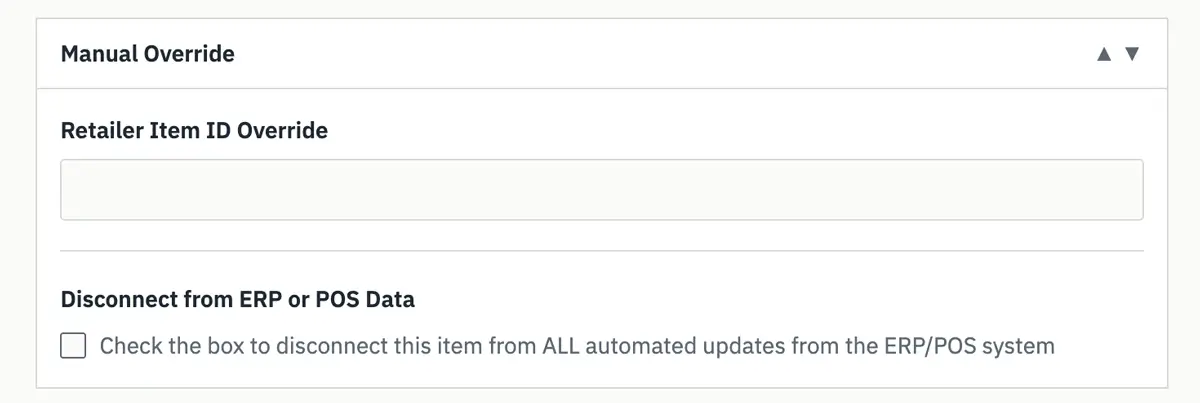
The Manual Override panel on the product edit screen. Open any product under Products in your website dashboard and scroll below the main product data to find it.
At a glance
| Retailer Item ID Override | Disconnect from ERP or POS Data | |
|---|---|---|
| Does | Forces this product to link to one specific item in your ERP or POS. | Stops all automatic ERP or POS updates to this product. |
| Use it when | The product is linked to the wrong item, or never linked at all. | You want to manage this product’s price, stock or showroom status by hand. |
| Updates | Continue automatically once the link is in place. | Stop completely. Nothing on the product changes unless you change it. |
| Takes effect | Next overnight sync. | Next overnight sync. |
| Undo | Clear the field and update the product. | Uncheck the box and update the product. |
Retailer Item ID Override
What it does
Normally the website works out which ERP or POS item a product belongs to on its own, by matching the manufacturer SKU. This field lets you decide instead. Whatever item ID you enter here wins over every automatic match, and the product will pull its price, inventory, showroom status and sort order from that item from then on.
The link you set here is permanent until you clear it. It is never changed by the automatic matching, and it stays in place even if the item is later discontinued in your system.
When to use it
- The product is showing price or stock from the wrong item, usually because two items in your system share a manufacturer SKU.
- The product has no live price or inventory because the manufacturer SKU in your system does not match the catalog, and you would rather link it here than correct the SKU in your ERP.
- You sell the product under an item that was set up differently from the catalog, such as a custom package or a store-built kit.
How to set it
- Look up the item in your ERP or POS and copy its item ID exactly as your system shows it. On PROFITsystems, STORIS and FROG this is the Item ID or product code. On Myriad it is the Model.
- Open the product on the website and paste the value into Retailer Item ID Override. Keep dashes and capital letters exactly as your system shows them. On PROFITsystems you may leave off the leading zeros: 123456 and 000000123456 both link to the same item.
- Click Update on the product.
A value that cannot be found disconnects the product. If the ID has a typo, belongs to an item that is not in your web feed, or (on Myriad) is a Model shared by more than one active item, the product will not fall back to automatic matching. It will show no live price or inventory until the value is corrected or removed.
What happens next
The link is established during the next overnight sync. From then on the product updates on the normal schedule, every 30 minutes, from the item you chose. If the product had been linked to a different item before, the old link is dropped.
Removing the override
Clear the field and click Update. At the next overnight sync the product returns to automatic matching. If no automatic match exists for it, the product will show no live price or inventory, exactly as it did before the override was set.
Your product edit screen also has an item ID field named for your system, such as Profit Item ID or STORIS Item ID. That field is maintained automatically and shows which item the product is currently linked to. Do not edit it to change a link. Use the override field instead; any edits you make to this field are overwritten.
Disconnect from ERP or POS Data
What it does
Checking this box puts the product entirely in your hands. The website stops sending it any data from your ERP or POS: no price or sale price, no stock quantity or stock status, no showroom display, no sort order, no featured flag, and no clearance changes. The product is also never removed or hidden automatically, even if the item is discontinued or deleted in your system.
The link to the ERP item is kept. It is just not used for updates while the box is checked. Product images, descriptions and other catalog content are not affected and continue to update as usual.
When to use it
- A floor model or one-off that you price and count by hand.
- You have set a special website price or stock status and do not want the next ERP update to put it back.
- The data in your ERP for this item is wrong or incomplete and you want to keep the product visible with hand-entered values while you sort it out.
- You want to keep a product on the site after its item has been discontinued in your system.
How to set it
- Open the product and check Disconnect from ERP or POS Data.
- Click Update.
- Make your manual edits to price, stock or anything else after the next overnight sync. Until that sync runs, the product can still receive one more update if its values change in your system, which would overwrite edits made in the meantime.
Reconnecting
Uncheck the box and click Update. Automatic updates resume at the next overnight sync, and anything you entered by hand is replaced by the values from your ERP or POS within a few days at the latest.
How quickly changes show up
Both fields are read once a day, in the early morning, when the website re-checks every product’s link. Make your change any time; expect to see it reflected the following morning.
Using both together
You can set an override and check Disconnect on the same product. The product is then linked to the item you chose, for reporting and matching purposes, but receives no automatic updates. This is uncommon. Most of the time you want one or the other.
If something looks wrong
- I changed a price on the website and it went back to the old value.
The product is linked to your ERP, and the ERP price overwrote your edit. Either change the price in your ERP, or check Disconnect from ERP or POS Data and re-enter the price after the next overnight sync. - The product shows price or inventory for a different item.
- Two items in your system probably share a manufacturer SKU. Enter the correct item’s ID in Retailer Item ID Override. Correcting the duplicate SKU in your ERP fixes it permanently.
- I entered an override and now the product has no price or stock at all.
- The value could not be matched to an item in your web feed. Check it for typos, confirm the item is active and web-enabled in your system, and update the product again.
- I set an override an hour ago and nothing has changed.
- Link changes take effect at the overnight sync. Check again the next morning.
- A product I disconnected disappeared from the site.
- Disconnecting never removes a product. Check whether it was trashed or set to draft by someone on your team, or by a catalog update unrelated to your ERP.
Still stuck? Contact R&A support with the product name and the item ID you expect it to link to.